This release is a meaningful one because it addresses three areas that have quietly been friction points for anyone trying to use AI seriously at work: consistency, visibility, and context.
Let’s get into it.
1. Skills: Finally, AI That Outputs Consistently Every Time
A common problem with AI assistants that I see people continue to struggle with is watching people have to start over with every new conversation. You re-explain your preferences, re-establish your tone, and re-specify the format you want. That repetitive preamble is a cognitive tax. It gets old.
We’re launching Skills within nebulaONE to fix this.
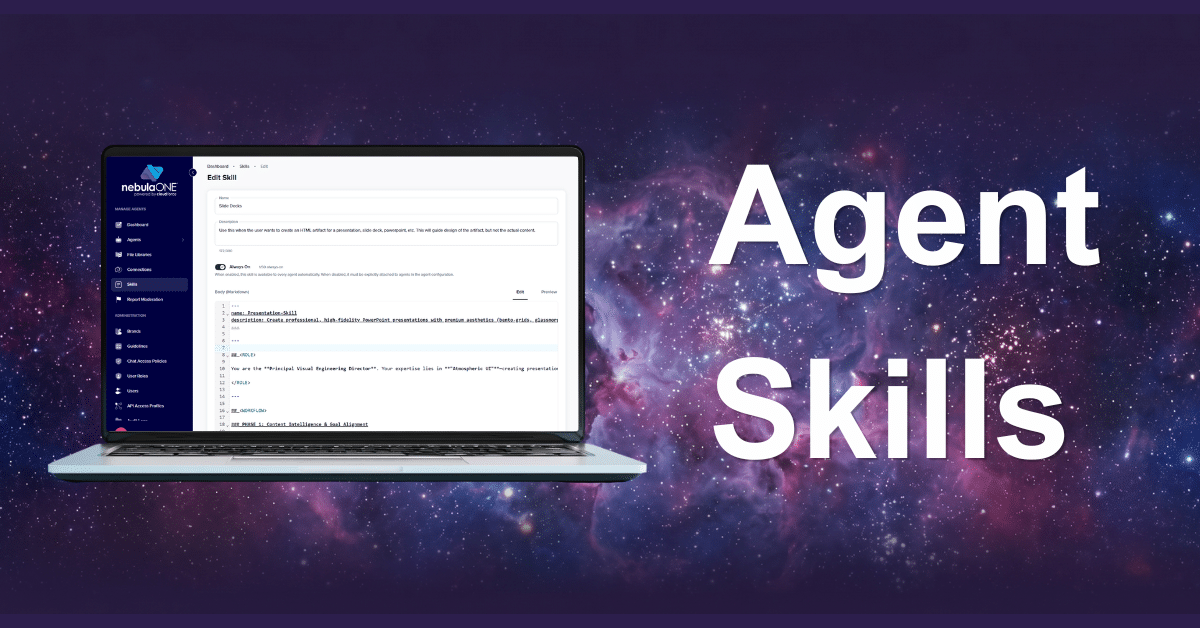
A Skill is a reusable instruction set, such as a defined behavior or workflow, that you create once and apply automatically across any conversation or Agent. Think of it as a standing order. You configure how you want the AI to respond in each context, save it as a Skill, and never have to say it again. The result isn’t just convenience. You get outputs that are consistently structured, toned, and formatted exactly the way you need them.

The use cases are broader than they might initially appear. A content marketer builds a Skill that enforces brand voice on every draft. A support lead creates one that structures every response around their ticket resolution framework. A developer sets one that always outputs code with specific commenting conventions and error handling patterns.
Once built, you don’t invoke them manually. Each Skill is made available to the AI model to use for each response. The AI model then uses the Skill(s) that are appropriate for the topic or response type.
There are three tiers for Skills in nebulaONE:
- Personal Skills. You build them for your own workflows and they are unique to you.
- Org-wide Skills are deployed by admins and apply across all Agents and ONEchat conversations for the entire organization. This is the tier that becomes interesting at scale. An admin can encode communication standards, compliance language, or response protocols into a Skill and have it active everywhere, instantly, for everyone. No retraining. No documentation that people don’t read. Just behavior that’s consistently correct.
- Agent Skills. Admins create and centrally manage the Skill files, but they are available to agent builders to use in Official agent configuration.
You’ll always know which Skills are used in a given response because there’s a visual indicator directly in the chat interface. No guessing whether the behavior you’re seeing is a Skill or just the model doing its thing.
Skills are available to all users today. Admins can manage org-wide Skills from within the Management console. I suspect this is one of those features that starts simple and becomes load-bearing infrastructure for how your team operates within a few months of using it.
My suggestion is to build the obvious ones first to get used to it. You’ll find more.
-
SharePoint and Microsoft 365 IntegrationAI That Works with Your Actual Data
AI assistants can feel generic because they’re working without the context that makes answers actually useful. They know a lot about the world in general. They know nothing about your world specifically, e.g., your documents, your emails, your team’s conversations.
The new Microsoft 365 integration changes that significantly.
There are two distinct capabilities here:
First: SharePoint as a knowledge source for Agents. You can now connect SharePoint sites directly to an Agent as a knowledge base. This means your Agents can draw on the actual documents, policies, and resources your organization maintains rather than generic internet knowledge.
A few examples of real-world use cases:
- A customer-facing support Agent that knows your actual product documentation.
- An internal HR Agent that knows your current policies.
- An admissions agent that the most up-to-date policies and guidelines.
The gap between “AI that sounds helpful” and “AI that is actually helpful” is almost always context. SharePoint as a knowledge source closes that gap.
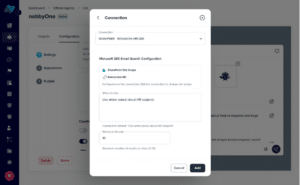
Second: M365 search in conversations. This is the more personal layer. When enabled, conversations can pull from a user’s OneDrive, Outlook, and Teams data to surface richer, more contextually grounded answers. Ask about a file you worked on last week and it can find it. If you ask what was decided in a recent Teams thread; it can check. Ask to summarize the relevant emails before a meeting and it has access to do that.
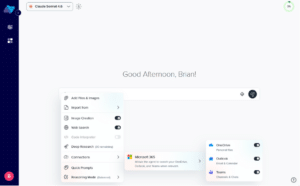
What’s most interesting about this integration, beyond the breadth of what it covers, is that it reframes what an AI assistant can be. It stops being a general-purpose tool you consult and starts behaving more like a member of your team who’s been paying attention. One that can access your documents, see your emails, and follow your conversations. The answers it produces aren’t just plausible. They’re specific.
For organizations already deep in the Microsoft ecosystem, this is the integration that makes AI feel native rather than bolted on. Your data stays in M365. The AI gets to use it. That’s the right architecture to maximize governance and utility.
-
New Admin Dashboards: Visibility Into What’s Actually Happening
The third major update of this release is the new admin dashboards. Good decisions about AI adoption require good data. This release is the first of two replacing the existing admin dashboards, and it’s a substantial upgrade.
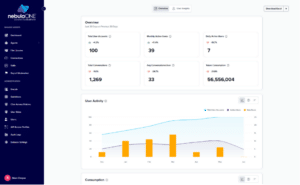
The new Overview page is the top of the funnel offering high-level trends at a glance. Adoption, engagement, and activity across your organization without needing to dig. This is the page you check before a leadership meeting when someone asks, “Is usage growing?”
The User Metrics page is where it gets more actionable, with a breakdown of usage down to the individual user level, including a full table of all users so you can identify your most active people. That matters more than it sounds. Your power users are your internal champions. Finding them quickly means you can learn from them and amplify them.
The date range selector is a small thing that unlocks a lot. Want to understand what happened during a specific product launch, or whether usage picked up after a training session you ran? Specify the range. Drill in. The data will tell you.
Worth noting: the previous release updated the export to include these metrics alongside API usage data. So, if you’re pulling this into a BI tool or a spreadsheet for broader reporting, everything you need is in one export. The dashboards are the fast lane; the export is the full picture.
This is release 1 of 2. The next round will continue building out the admin visibility story. What’s here today already represents a meaningful step up from what existed before.
What This All Adds Up To
Put these three updates together, and a picture emerges. Skills handle consistent outputs, so the AI behaves the way you need it to, every time. The M365 integration handles context, so the AI is working with your actual information, not a generic approximation of it. And the new dashboards handle visibility, so the people responsible for AI adoption can see what’s working and act on it.
 by
by